Initial Setup
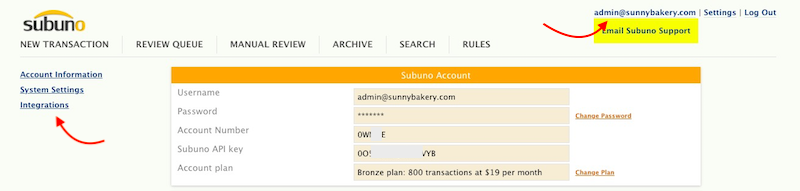
To access these settings, log into your Subuno account.
You can click here to navigate to the advanced options dialogue box.
You can also click on your username on the top right and then click on "Integrations" on the left.
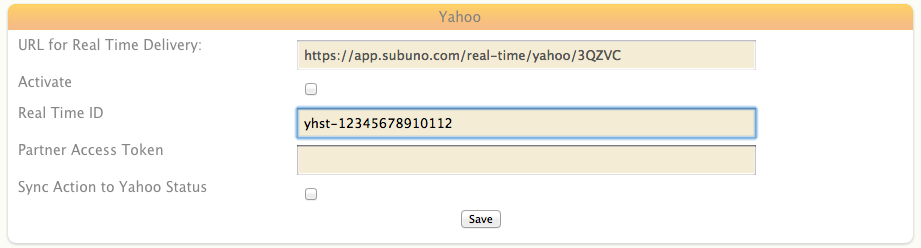
Add your Turbify/Yahoo store ID to Subuno
Enter your Yahoo Store ID (e.g. “yhst-12345678910112” or “acmestore” for legacy users) in the Real ID field.
Then copy the entire URL from the “URL for Real Time Delivery” field for insertion in your Turbify settings.
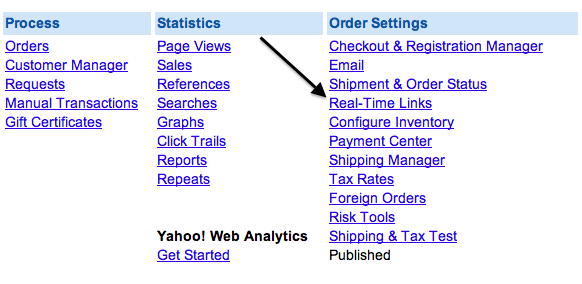
Navigate to Real Time Delivery Settings
In a separate window or tab, go to your Yahoo Store Manager and under Order Settings, click on Real-Time Links and then Real-Time Links Settings.
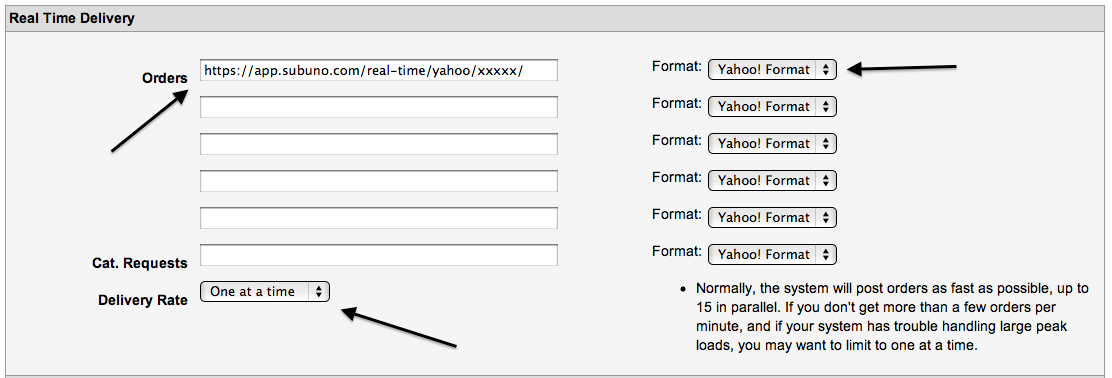
Connect Real Time Delivery
Paste the URL you copied from Subuno into an available field in the Real Time Delivery Section. Make sure the keep the Format as “Key-Value Format” and Delivery Rate as “One at a time”. Click on update and then save.
Order API Authorization
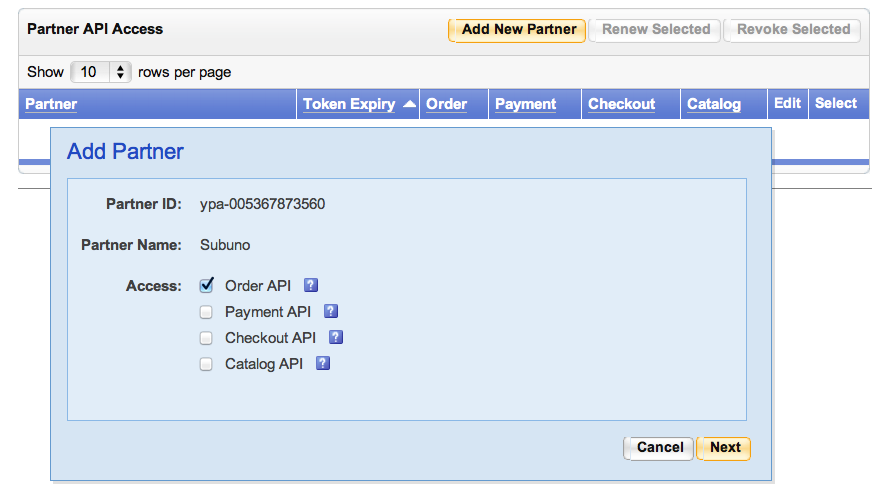
Go back to Real-Time Links Settings and click on API Settings. Then click on “Add New Partner” and enter Subuno’s Yahoo Partner ID (ypa-005367873560) and check off “Order API”.
Enter Partner Access Token
Once you accept the Yahoo terms, you will receive an email from ms-partner@yahoo-inc.com giving you a unique security partner access token.

Copy the partner access token to your Subuno Integration page and click on save.
Publish Changes
You need to publish all the changes you've made to complete the connection process.