Initial Setup
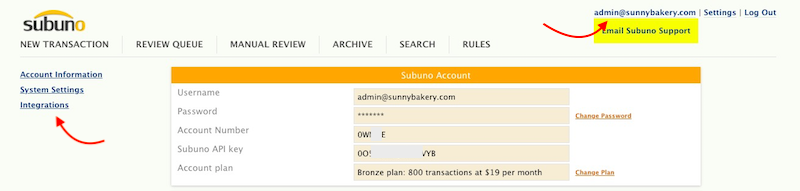
To access these settings, log into your Subuno account.
You can click here to navigate to the advanced options dialogue box.
You can also click on your username on the top right and then click on "Integrations" on the left.
Subuno Email Alerts
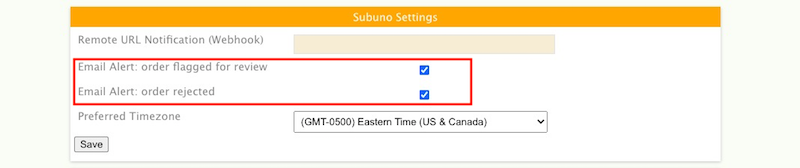
When Subuno flags an order for review or reject, you can choose to be alerted by email.
You can turn the alerts on/off in your settings in Subuno.
Insert Subuno Message
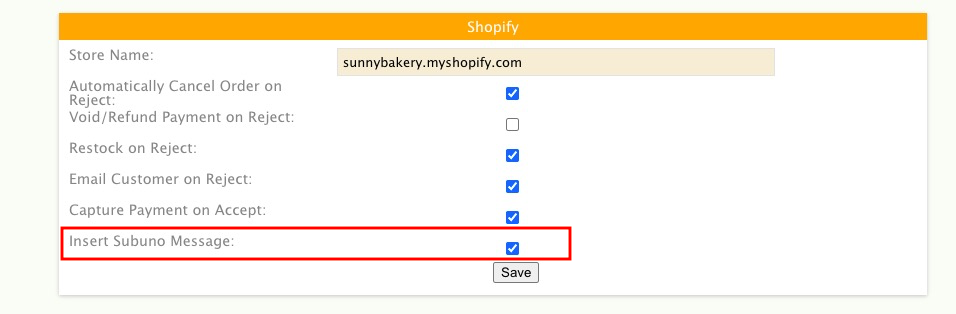
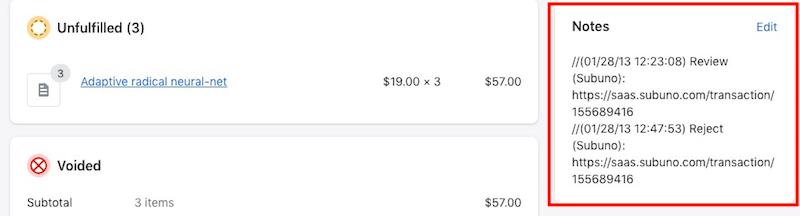
This option allows Subuno to insert a private message directly into the "Notes" section of your Shopify order.
This allows Subuno to communicate to you and alert you to the result of the fraud screening concerning each order. Every time an update is made, a corresponding message is inserted.
***The note is only visible to you and not visible to your customers.
If you do not wish the note to be inserted, please make sure you turn on email notification in your settings so you can be notified when orders are either flagged for review or rejected.
Optional Automation
When an order is rejected in Subuno, you have the option to have Subuno instruct your Shopify store to cancel the order.
| Action | Description |
|---|---|
Auto-Cancel |
Instructs Shopify to cancel the order immediately upon rejection. |
Void/Refund |
Automatically voids authorization or refunds payment. (Requires Auto-Cancel to be enabled). |
Restock |
Items are automatically added back to your Shopify inventory count. |
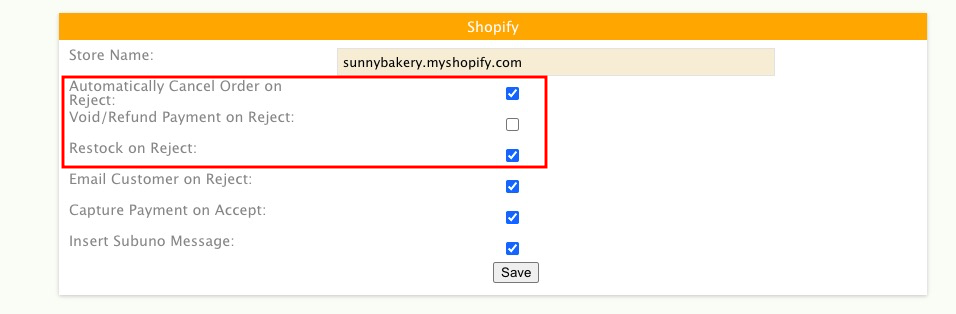
Note: Void/ Refund Payment on Reject and Restock on Reject cannot be checked without checking off Automatically Cancel Order on Reject
Customer Notifications
You can trigger a Shopify-native email to the customer when Subuno rejects an order.
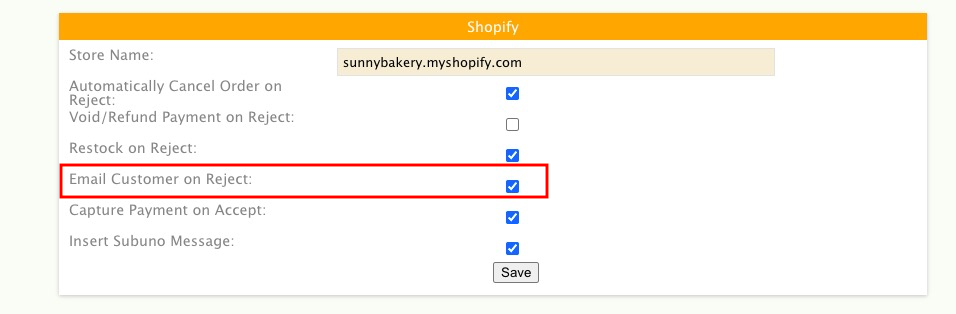
This email is sent by Shopify, not Subuno. You can customize the content in your Shopify admin
To modify the email template, navigate to Settings > Notifications in Shopify and edit the “Order canceled” template.
Payment Capture (Digital Goods)
When an order is accepted in Subuno, you can automatically capture the payment if your initial payment processing is set to “authorization only”, rather than “authorize & capture”.
This is most applicable to merchants who sell digital goods only. Capturing payment in Shopify allow your fulfillment app to deliver the digital goods ordered.
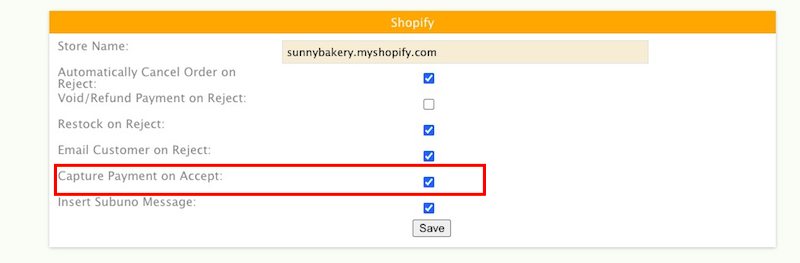
Payment processing is set in your Shopify store > Settings > Payment and may appear as automatically capture payment vs. manually capture payment.