Initial Setup
To access these settings, log into your Subuno account.
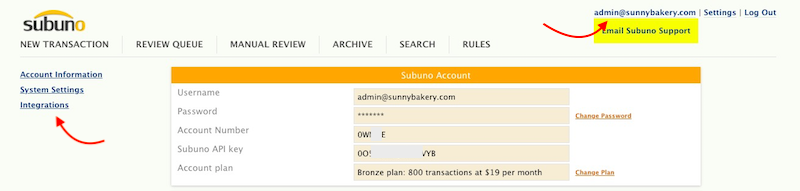
You can click here to navigate to the advanced options dialogue box.
You can also click on your username on the top right and then click on "Integrations" on the left.
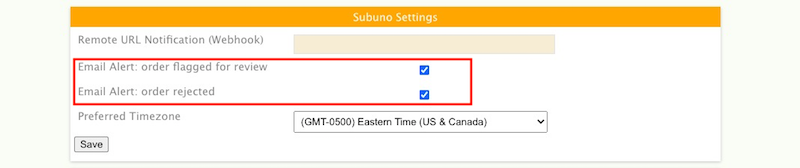
Subuno Email Alerts
When Subuno flags an order for review or reject, you can choose to be alerted by email.
You can turn the alerts on/off in your settings in Subuno.
Update your Bigcommerce Order Status
If you would like Subuno to relay back to your BigCommerce store concerning your order, please check the “Callback” and “Set status with callback” boxes.
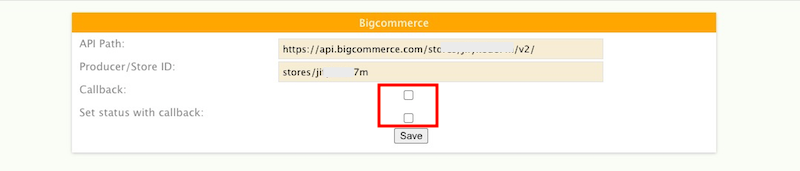
This allows Subuno to communicate to you and alert you to the result of the fraud screening concerning each order.
Checking both of these will allow Subuno to change the order status of the order based on the Subuno action flag.
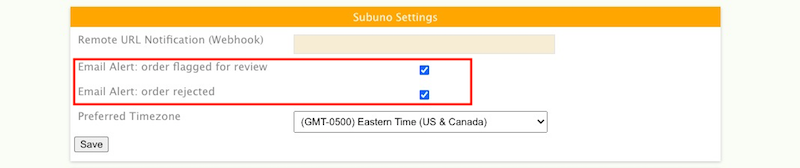
If you do not wish Subuno to callback and set the order status, please make sure you turn on email notification in your settings so you can be notified when orders are either flagged for review or rejected.
Order Status Update During Automatic Processing
When your an order first comes into Subuno, it goes through the rules you have in your account. This is the “auto rules processing” portion of Subuno. If Subuno “accepts” the order, then nothing happens on BigCommerce end- meaning that the order status remains the same. You it would proceed on BigCommerce side as you currently have set up. Only if the order is flagged as “review” or “reject” does the order status change.
- ACCEPT –> nothing changes
- REVIEW –> Bigcommerce order status changes to manual verification
- REJECT –> Bigcommerce order status chagnes to declined
Order Status Update After Manual Review
When you perform manual review in Subuno, you can “accept” or “reject” the order by clicking on the corresponding button. When you click on one, Subuno automatically updates the order status of the order in BigCommerce.
- ACCEPT –> Bigcommerce order status changes to awaiting fulfillment
- REJECT –> Bigcommerce order status chagnes to declined